

Who it’s for:Admin
Available on:Web
Build your own field forms — inspection checklists, authorizations, satisfaction surveys — without any engineering help, under Settings → Forms.
- Select New Form to create a blank, unpublished form and open its builder.
- Select Add Question to add a field, then choose its type: short answer, long answer, date, number, yes/no, signature pad, multiple choice, multi-select, dropdown, or multi-select dropdown.
- Give the question a title, mark it Required if needed, and for choice-type questions, add the answer options.
- Drag questions to reorder them, or use the menu on any question to duplicate or delete it.
- Select Preview to try the form exactly as your team will see it.
- Select Publish when it’s ready — it immediately becomes available to fill out on any job.
- Editing a form updates it for future responses at any time.
- Duplicate a form from its menu to reuse it as a starting point for a new one.
- Unpublish hides a form from the “fill out” list without deleting past responses; Delete removes it permanently.
Line item panels and crew fields
A line item panel shows a read-only Unit column beside Item and Quantity. It fills in the billing unit — “Day,” for example — of whichever item is picked on that row, and it is sized to fit the longest unit the panel can show. If none of the panel’s items has a billing unit, the column isn’t shown at all.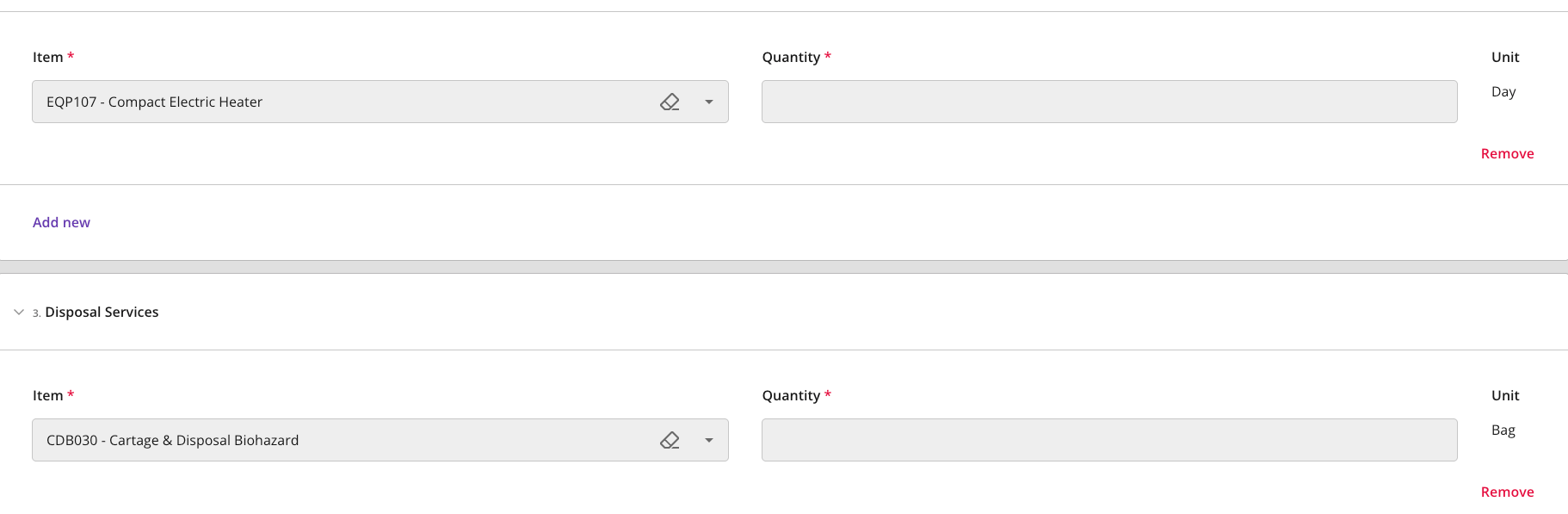
The self-service builder covers a single, reorderable list of questions per form — it doesn’t currently support photo-upload fields or multi-page sections. If you need something the builder can’t do, reach out and we can build it for you as a Static Form.