

Who it’s for:Admin
Available on:Web
Connect TrueRestore to the other tools your business runs on from Settings → Integrations. How much setup each one takes varies:
For ServiceTitan and Workiz, an Admin can keep unwanted work out with Skip jobs by job type under Jobs: any job whose job type contains one of your keywords (e.g. “carpet,” “odor,” “pet”) isn’t imported.
ServiceTitan, Workiz and Zapier each have Connect to set them up and Disconnect to stop them. Disconnecting one never stops another. If your Zapier key has leaked, Disconnect Zapier to turn that key off, then Connect again for a new one and paste it into your Zaps; your ServiceTitan and Workiz imports keep running. ServiceTitan and Workiz also have Edit, to change what they are connected with (ServiceTitan’s Tenant ID, Client ID and Secret Key, or Workiz’s API key) without disconnecting or losing their settings.
Every integration shows whether it is actually working: a Not importing or Calls failing tag when something is wrong, a status line with details, and when it last synced or was last used.
Also under Jobs, Send ESX Files to ServiceTitan attaches ESX files to the job’s ServiceTitan record: an estimate’s when you accept it, and a sketch’s when it is delivered. It is off until an Admin turns it on, and like reports it only applies to jobs that came from ServiceTitan.
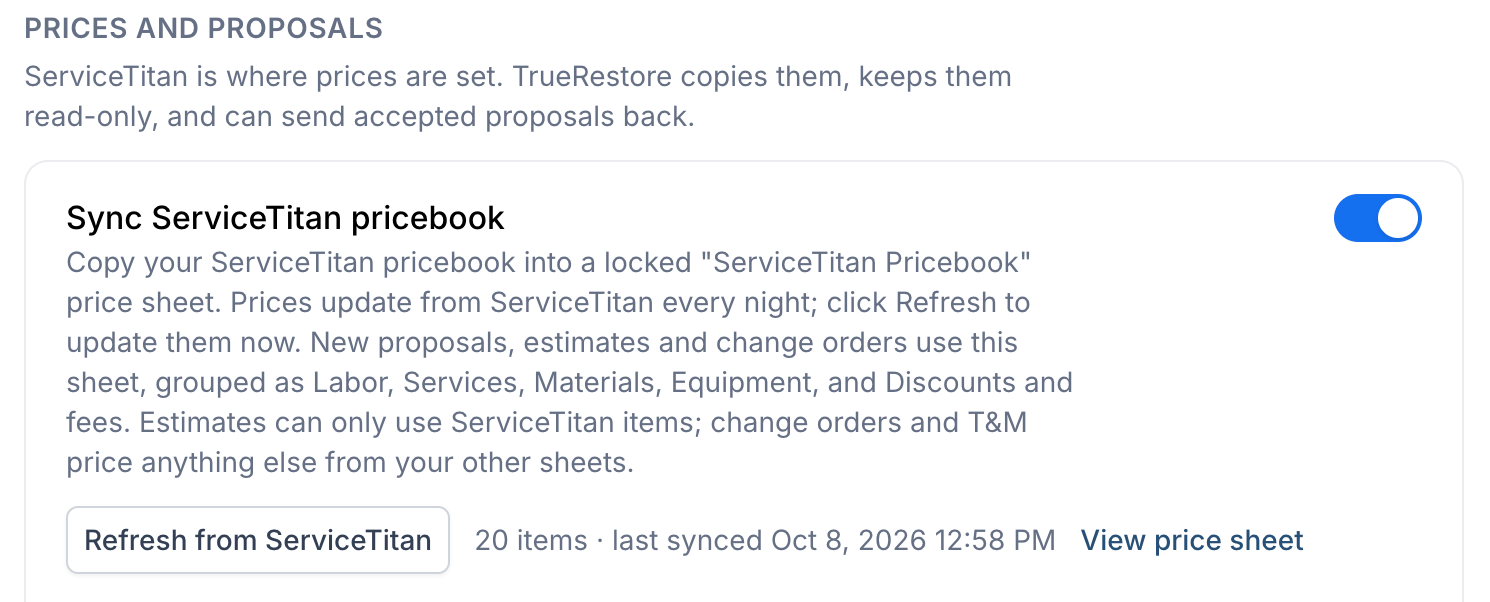
ServiceTitan can also supply your prices. Under Prices and proposals, Sync ServiceTitan pricebook copies your ServiceTitan pricebook into a read-only ServiceTitan Pricebook price sheet that new estimates and change orders start from. Estimates on jobs that came from ServiceTitan can use only items from that sheet; change orders and other estimates can also price items from your other sheets.
Checking the ServiceTitan connection
The ServiceTitan card shows the connection’s status in one line, green when everything works and amber or red when something needs attention; Show details lists each feature with the API scopes it needs. Once ServiceTitan is connected, the card checks the connection each time you open it and marks each feature as granted, missing a scope, or impossible to verify (for example while ServiceTitan refuses the connection). Click Check again after fixing something in ServiceTitan. If ServiceTitan refuses the connection, check that the Tenant ID, Client ID and Secret Key belong to the ServiceTitan account you are connecting, and have a ServiceTitan admin approve TrueRestore under Settings → Integrations → API Application Access. If the job import stops working later, the Jobs section says since when and why. Each feature needs these API scopes on the TrueRestore app in ServiceTitan’s developer portal:
Sending reports is checked by reading one ServiceTitan job’s attachments, so it can be verified only once the account has a job.