Who it’s for:TechnicianProject LeadAdmin
Available on:Web
Job reports are generated from the web app. For what each report contains, see Report types at a glance.
Generate a report
- Open the job.
- Select Generate Report in the job’s header.
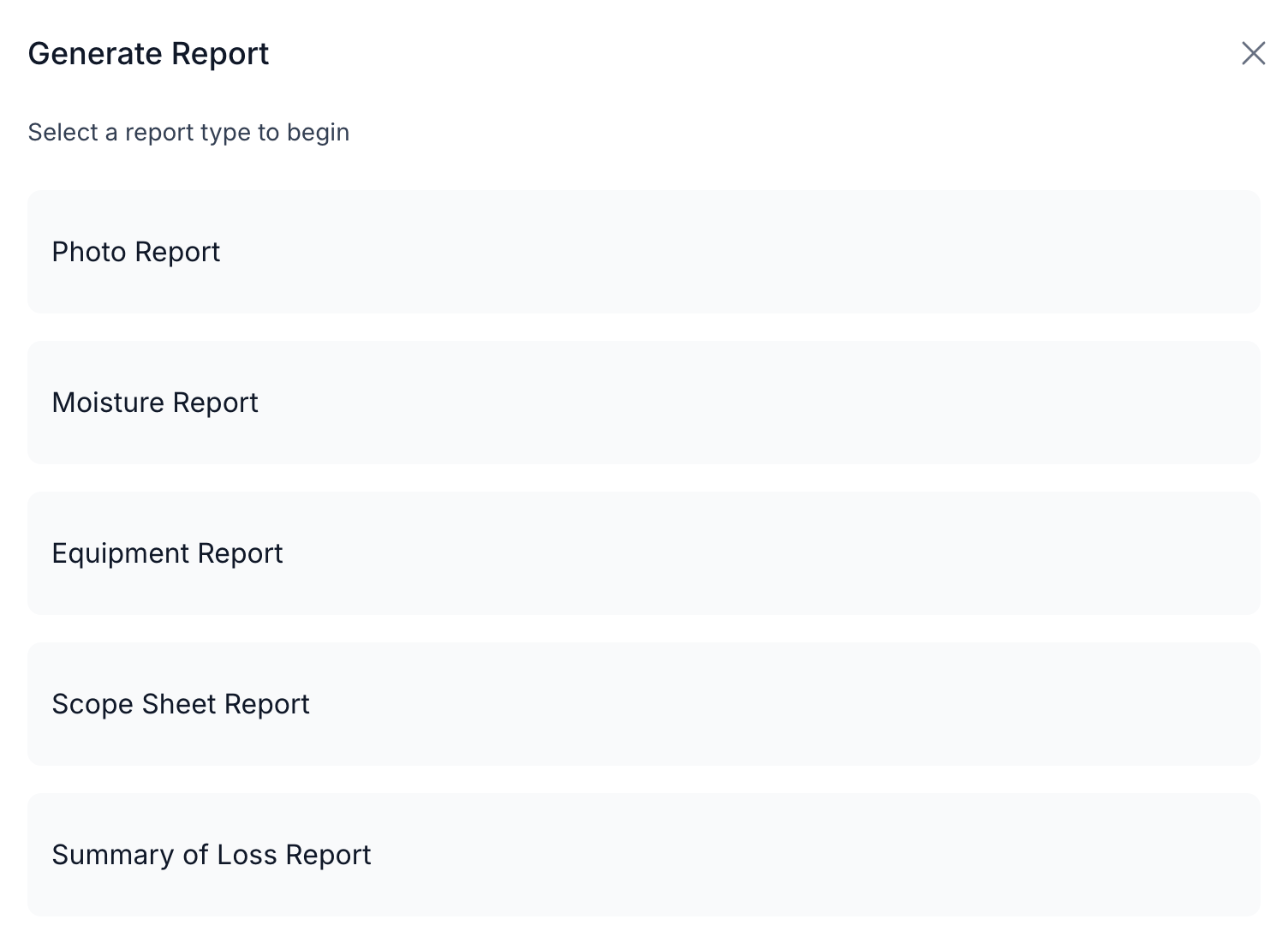
- Choose a report type.
- For the Photo Report, Moisture Report, and Summary of Loss Report, work through the steps to choose what goes in, then select Generate Report. The Equipment Report and Scope Sheet Report start as soon as you choose them.
While it’s generating
A progress message stays on screen while the PDF is built. You can keep working in TrueRestore, but don’t reload or close the page until it finishes. A large job with many photos takes longer.Download it, or find it later
- When the report is ready, the message changes and offers Download.
- Every report is also saved to the job. Open the job’s Documents tab and look in the Reports folder. A report can take a little while to show up there after the download is ready.
If a report fails
- Select Try again on the error message.
- Check the Documents tab first if the message said the report took too long. A very large report can still arrive in the Reports folder.
- Make the report smaller. For a Photo Report, pick fewer locations, a shorter date range, or fewer photo types.
- If the message offers Download original, your report was made. Select it to download the full-size PDF.
- If it keeps failing, contact Support with the job number, the report type, and a screenshot of the message.